MFCommander Infra · Kubernetes
View logs from multiple Kubernetes pods in one window
Combine Pod logs, narrow the view to one source and follow current output.
When a workload has several replicas, the line you need may be in any one of them. Opening each Pod’s logs separately makes you repeat the same navigation and keep track of several windows.
MFCommander can bring the selected Pods’ logs into one window. Source labels show where the lines came from, and a filter lets you focus on one source without losing the combined view. This walkthrough uses two replicas and generated log messages.
Select the Pods
Open Pods under Workloads in the resource browser. Check the connection and namespace, then find the two replicas you want to inspect. Select the first Pod, hold Command and select the second.
Look at the selection before opening the menu. Keep it limited to the Pods relevant to the question you are investigating. The generated names may share a prefix, but the selected rows determine which resources the action uses.

Open their logs together
Open the selection’s context menu and choose View Logs for the selected Pods. For two selected Pods, the menu reads View Logs (2 Pods). MFCommander opens an aggregated log window.
Read the source label at the start of each merged line. It identifies the Pod and container that produced the output. Use those labels as you compare messages from the replicas, especially when both write similar startup or request messages.
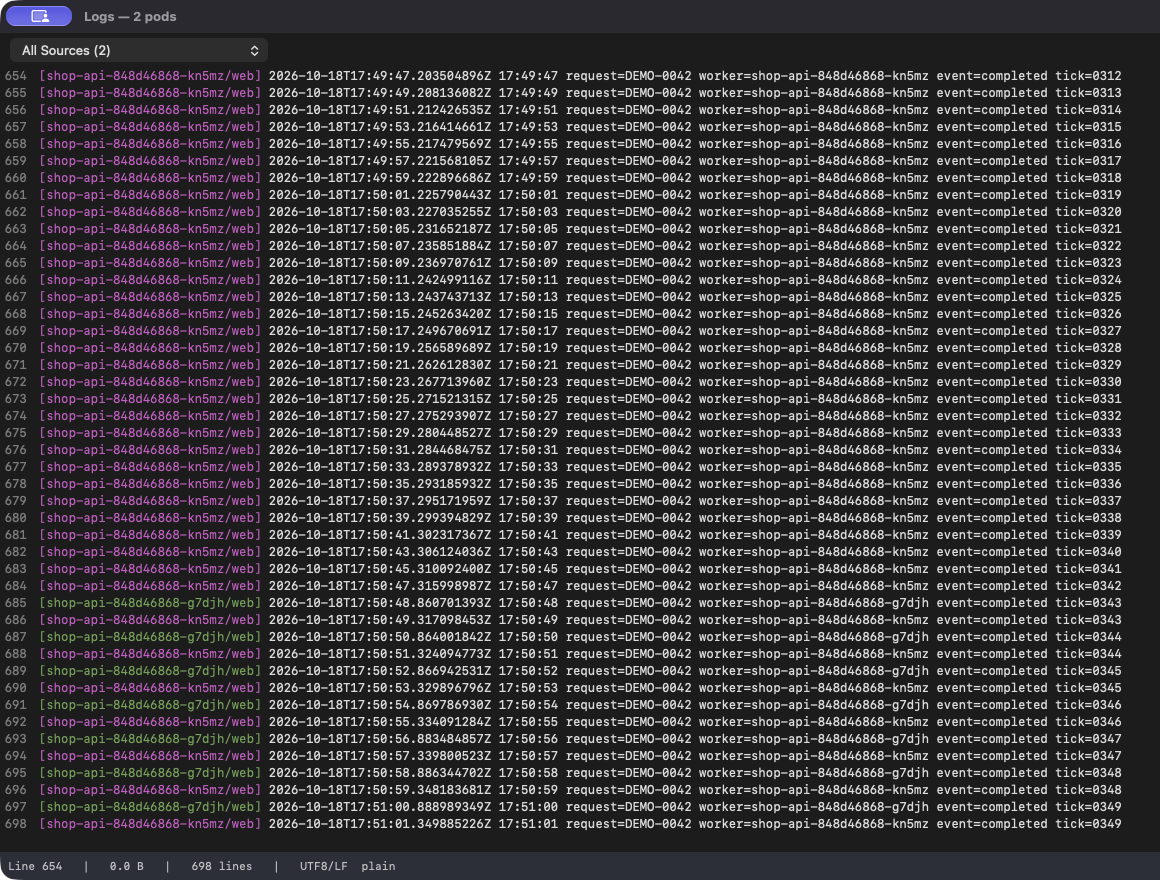
Hold your place
Turn Follow off when you need to read an earlier section. In this log window, Follow controls automatic scrolling. It does not stop the underlying streams from receiving new output.
Read the surrounding messages before interpreting a single line. A repeated phrase can describe separate requests, retries or different replicas. A request identifier and the source label together are more useful than the phrase alone when your application includes those identifiers.
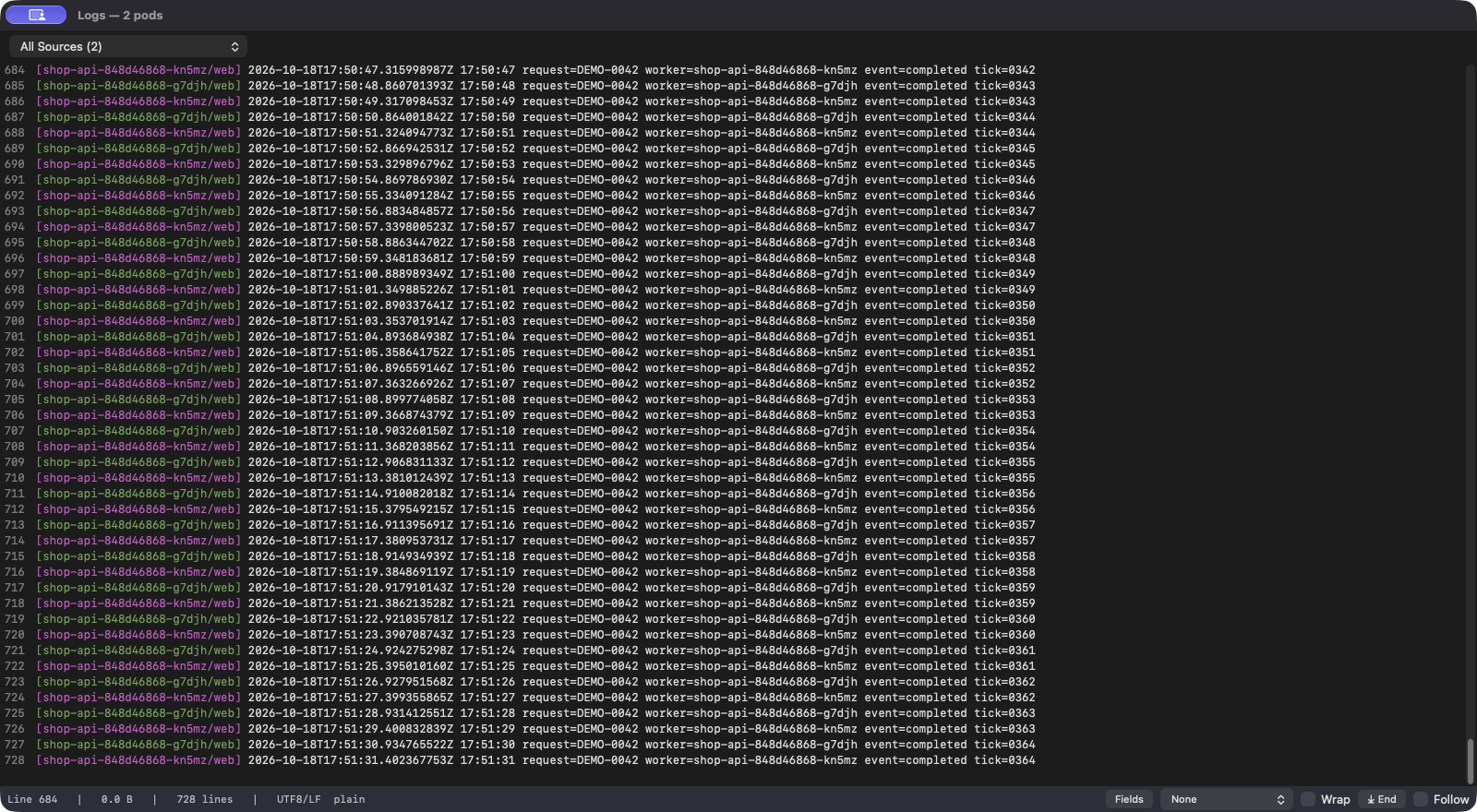
Focus on one source
Open the source popup and choose a particular Pod and container. The viewer switches to that source’s output. This is useful when a busy replica makes it difficult to read the other one in the combined view.
Choose All Sources to return to the merged output. The number in All Sources (N) counts streams. Keep that distinction in mind if the workload has sidecars or other containers with their own logs.
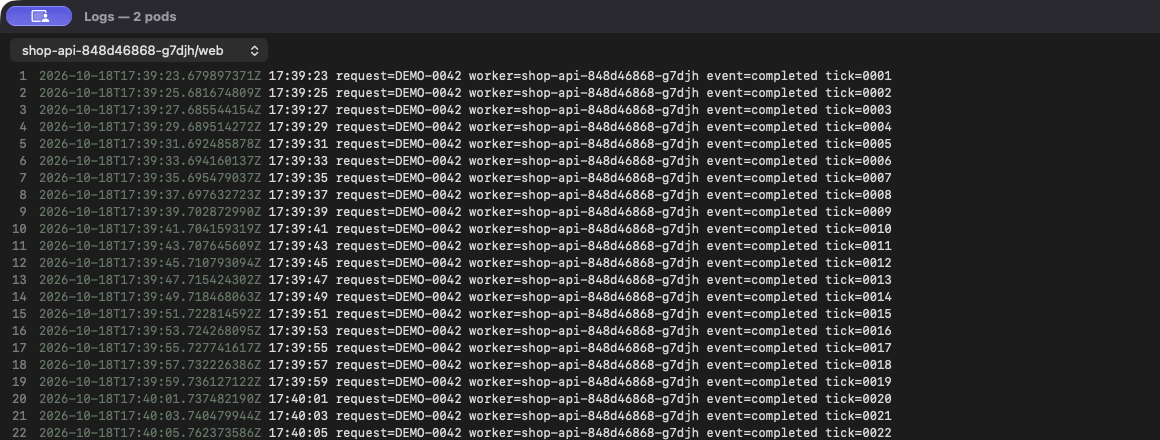
Return to the live output
Return to All Sources, turn Follow on and click End to reach the latest output. Check the control after changing sources, then watch for the next recognizable message.
Treat the combined output as a way to inspect several streams together. Arrival order alone does not establish the order in which events occurred across Pods. Compare timestamps and request identifiers when you need to reconstruct an event.
Close the log window when you finish. Closing it stops the log streams owned by that window and removes its temporary log files.
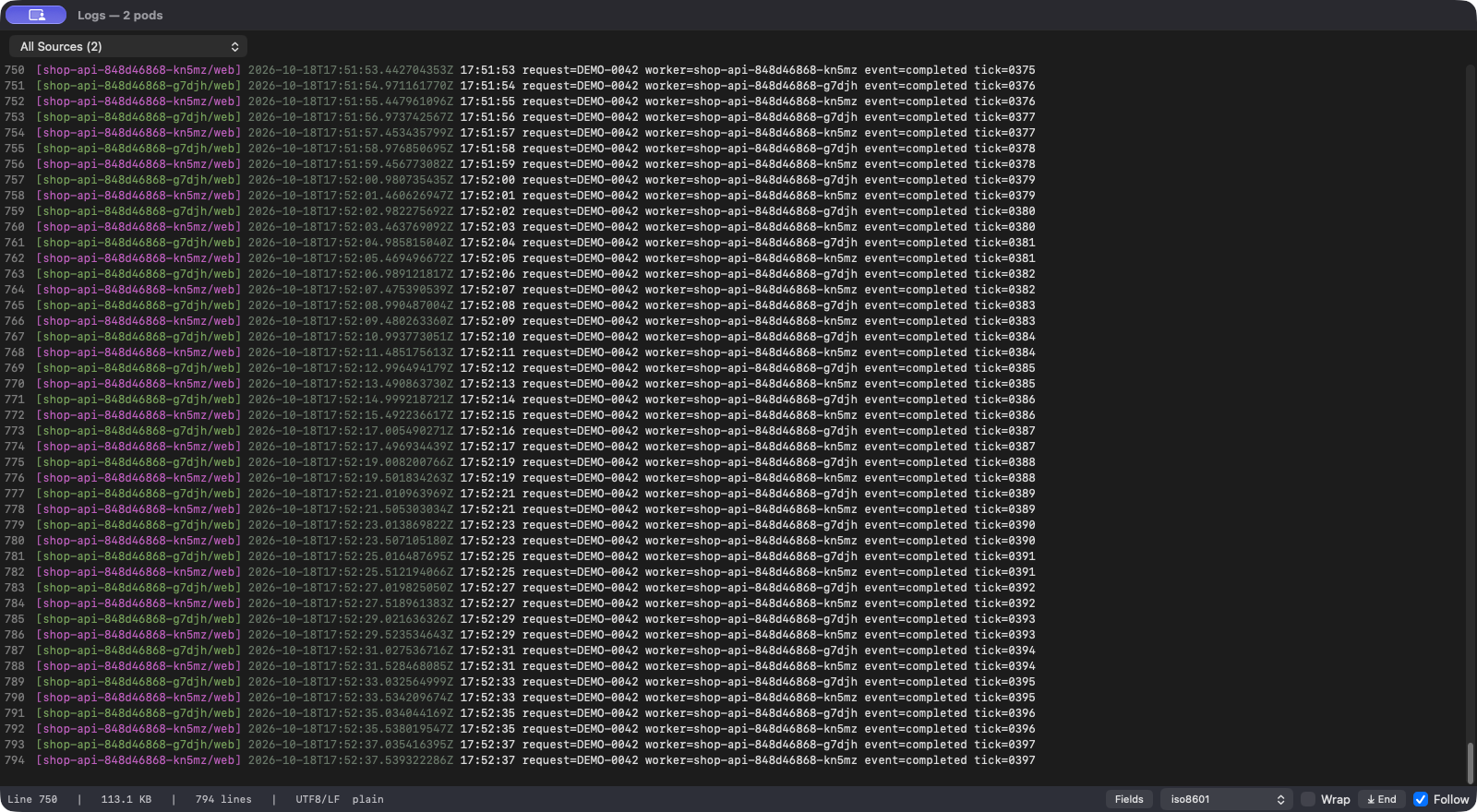
You can move between the combined output and one source while keeping the same investigation open. Start with a small, relevant selection, use the labels to identify each line and pause automatic scrolling when you need time to read.
For larger selections, the current viewer admits up to 15 streams at once. Additional sources show a queued state while they wait for a slot, so a queued source is not evidence that the Pod has produced no logs.